
Have like 20 email addresses with google? Time to consolidate! In a few easy steps you can forward all your emails to 1 single account. Its easy to do, will simplify your life and there is no downside.
Your first question might be: “But wait, I need to be able to send emails from xyz@gmail.com address”. NOT A PROBLEM! After you setup email forwarding, sending email from multiple accounts as easy as 1-2-3. At the end of this article we will direct you to another article relating to “sending emails from different email addresses with one account“.
Step 1: Login to your Gmail or Google Apps account.
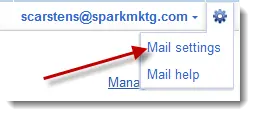
Step 2: Goto your email account settings page.
(note that your settings tab may look like either of these two screenshots depending on exactly how you have your account setup)

Step 3: Click on the Forwarding Tab and then add a forwarding address.

Step 4: Type in your “master” email address where you want to receive all your emails and click “done/ok/save” or whatever confirmation the button reads.
Step 5: Click “Save Settings” to save.
Optionally modify what happens to messages that are forwarded and then

What next?
Try “sending emails from different email addresses with one account“.