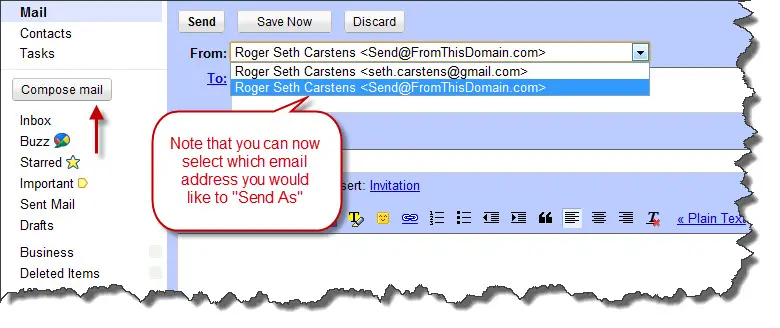
Using Google Email and Google Apps – Part 2 Sending emails from different email addresses with one account is easy with Google Mail and Google Apps. This is best used in conjunction with the “Forwarding a Gmail or Google Apps Email Address” functionality which was explained in a previous article. Follow these steps and soon you too will be able to send emails from any number of email accounts, all from your primary Google Gmail account!
Step 1: Login to your Gmail or Google Apps account.
Step 2: Goto your email account settings page.
(note that your settings tab may look like either of these two screenshots depending on exactly how you have your account setup) 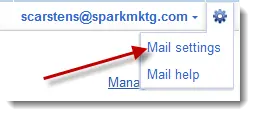

Step 3: Begin “Send Mail As” Process
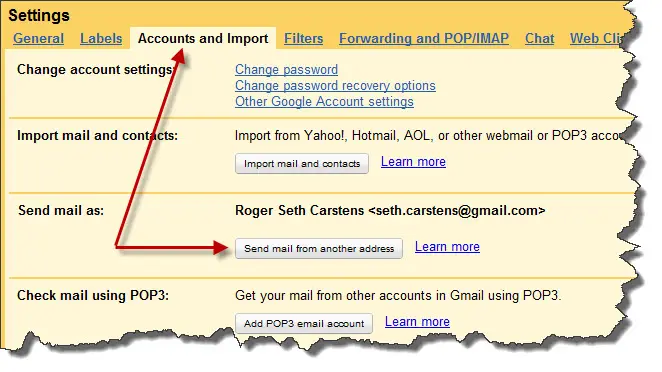
Step 4: Adding Another Send As Address
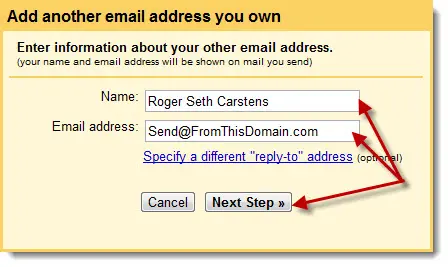
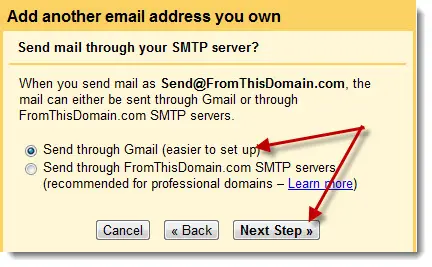
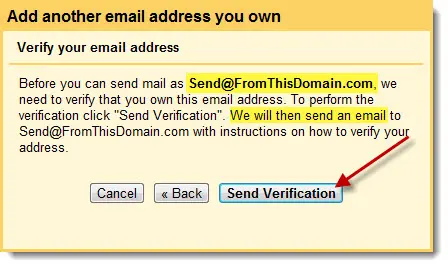
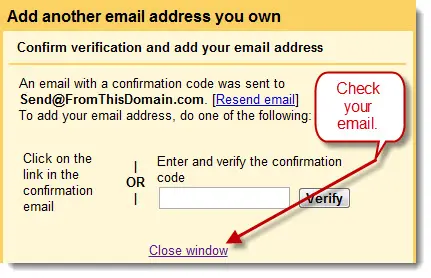
Step 5: Confirm Your Ownership of the Account by Email
In order to send email from the account you are attempting to setup, you must verify that you actually have access to the email address. You can do this be typing the verification code into the last screenshot above, or its probably easier to click the link in the email you received. Keep in mind that if you followed the previous tutorial on “forwarding your email address”, then the email should be accessible through your primary email account. However, if you have not setup email forwarding, you will have to check the inbox of the secondary email account in order to confirm your ownership of the account. 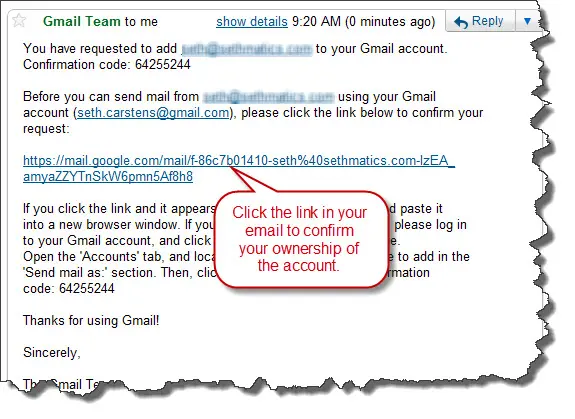
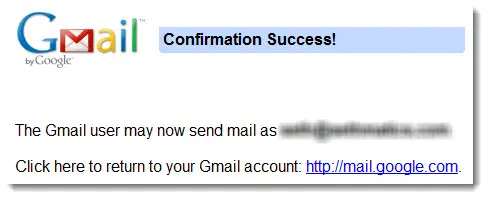
Step 6: Your done! Now compose an email from the new email address.